

Key takeaways
- Pay-as-you-go Microsoft Fabric capacities are billed only while they are running — so pausing a capacity when it is idle stops the compute charge.
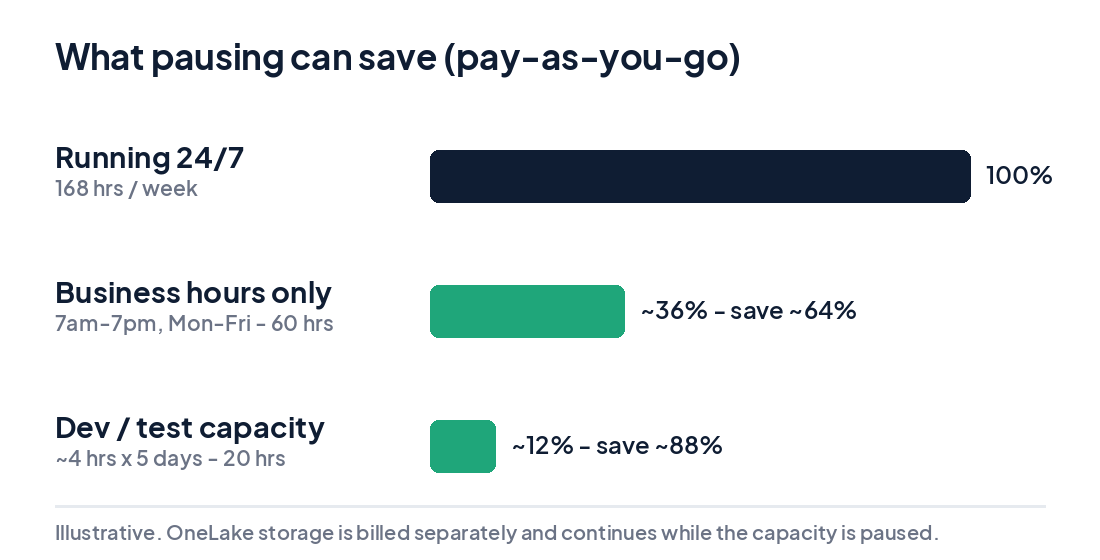
- Running only during business hours instead of 24/7 can cut a capacity’s compute cost by 60–90%.
- You can pause and resume manually in the Azure portal, or automate it with a schedule (for example, resume at 7am and pause at 7pm on weekdays).
- Pausing only saves money on pay-as-you-go capacities — reserved capacity bills continuously whether paused or not.
Microsoft Fabric is powerful, but the bill adds up fast if your capacity runs around the clock while nobody is using it. The single easiest way to cut that cost is also the most overlooked: pause the capacity when you don’t need it. Here is how Fabric billing works, how much you can save, and how to automate pause and resume so it happens without anyone thinking about it.
How Fabric capacity billing works
Microsoft Fabric runs on capacities — the F SKUs (F2, F4, F64 and up) that provide the compute behind every workload. On a pay-as-you-go capacity, you are billed by the second while the capacity is active. Your data in OneLake is billed separately as storage, and that charge continues even when the capacity is paused. So pausing stops the (usually much larger) compute charge, while your data stays safe and ready.
Why pausing saves so much
A week has 168 hours. If a capacity only needs to be available during business hours — say 7am to 7pm, Monday to Friday — that is just 60 hours, around 36% of the cost of running 24/7. A development or test capacity that is only used a few hours a day can run on a tiny fraction of that. For non-production workloads especially, pausing is almost free money.
How to pause and resume manually
In the Azure portal, open your Fabric capacity resource and use the Pause and Resume buttons at the top. Pausing takes effect quickly; resuming takes a minute or two before the capacity is ready again. You can do the same from PowerShell, the Azure CLI or the Fabric REST API — which is what makes automation possible.
One billing detail to know
Fabric smooths compute usage over time to handle spikes. When you pause a capacity, any outstanding smoothed usage is totted up and billed at that moment. In other words, you still pay for the work the capacity actually did — pausing simply stops you paying for the idle hours afterwards. Pause when the capacity is genuinely quiet, not in the middle of a big job.
Automate it — set and forget
Doing this by hand every evening is not realistic. The reliable approach is to automate pause and resume on a schedule:
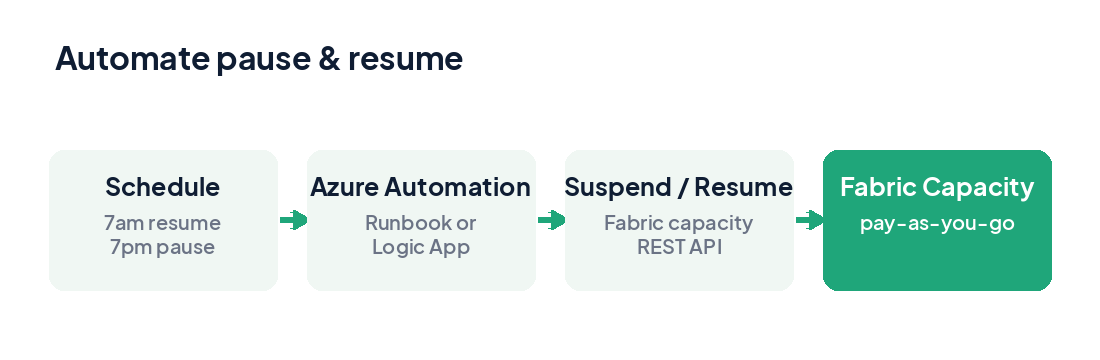
- Azure Automation runbook — a small PowerShell runbook that suspends or resumes the capacity, with two schedules (resume in the morning, pause in the evening).
- Logic App or Azure Function — a timer-triggered flow that calls the Fabric capacity Suspend/Resume REST API.
- Managed identity — give the automation a managed identity with rights on the capacity, so there are no secrets to manage.
A typical schedule: resume at 7am and pause at 7pm, Monday to Friday, and leave it paused all weekend. Adjust to your team’s hours — and remember to use your local time zone (GST in the UAE).
Reserved vs pay-as-you-go
Pausing only helps pay-as-you-go capacities. A reserved capacity (a one-year commitment) is significantly cheaper per hour — around 40% off — but it bills continuously whether the capacity is paused or not, so pausing it saves nothing. A common strategy is a small reservation for your steady baseline plus a pay-as-you-go capacity for burst and non-production that you pause outside working hours.
What to watch out for
- Content is unavailable while paused — reports and apps on that capacity can’t be used, and scheduled refreshes won’t run. Schedule refreshes to run after resume (or before pause).
- Warn your users and pick hours that match how the capacity is actually used.
- Never pause a capacity mid-job — running pipelines or notebooks will stop.
- Start with dev, test and departmental capacities — they are the lowest-risk, highest-reward wins.
Who should do this
Any team running a pay-as-you-go Fabric capacity that sits idle nights and weekends — which is most of them. Development, test, UAT, demo and departmental capacities are the obvious candidates, and even many production capacities can be paused overnight with a sensible schedule.
Planning a move to Fabric? Explore our Microsoft Fabric consulting in the UAE — strategy, adoption & architecture, migration and end-to-end implementation.
Further reading: Save money with Microsoft Fabric pause/start capacity (MSSQLTips), plus Microsoft’s Fabric capacity documentation.
Frequently Asked Questions
Does pausing a Microsoft Fabric capacity save money?
Yes. Pay-as-you-go F SKUs are billed only while the capacity is active, so pausing it when idle stops the compute charge. You continue to pay only for OneLake storage.
What happens when I pause a Fabric capacity?
Its content becomes unavailable — reports and apps on that capacity cannot be used and scheduled refreshes will not run — until you resume it. Resuming takes a minute or two.
How do I automate pausing and resuming a Fabric capacity?
Use an Azure Automation runbook, a Logic App or an Azure Function on a schedule, calling the Fabric capacity Suspend/Resume REST API — ideally with a managed identity. A common pattern is resume at 7am and pause at 7pm on weekdays.
Does pausing help if I have a reserved capacity?
Not directly. Reserved capacity bills continuously whether paused or not, so pausing saves money on pay-as-you-go capacities. A common strategy is a small reservation for the baseline plus a pay-as-you-go capacity you pause.
Is it safe to pause a production Fabric capacity?
Only outside working hours and when no jobs or refreshes are running. Coordinate scheduled refreshes, warn users, and account for your time zone. Dev, test and departmental capacities are the easiest, lowest-risk wins.